What’s new
Everything we’ve shipped recently for coaches, gyms and their clients.
Build with AI: a first draft of a plan, template, habits or program
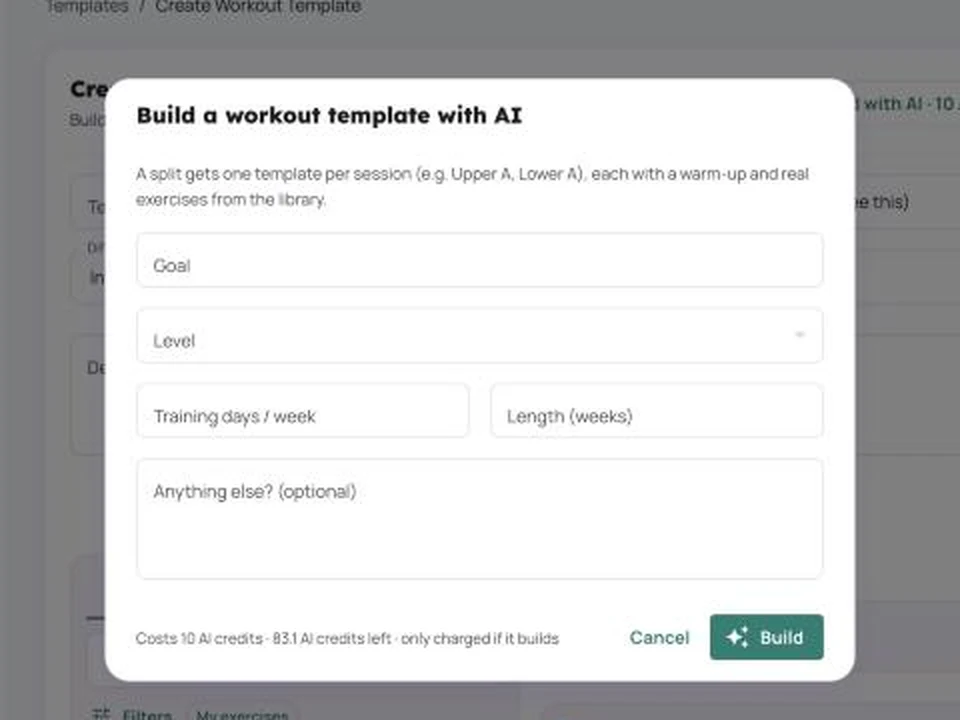
On Coach Pro, a Build with AI button in the workout and nutrition builders, templates, habits, check-ins, programs and client intake forms drafts the first version for you from a short brief. The cost in AI credits is shown before you click and the draft opens in the normal builder, so nothing reaches a client until you review and save it. AI credits are one simple unit for everything AI in Trainzilla, and Coach Pro includes 100 a month. On the web today; the coach apps follow.
Write with AI for bios, descriptions and messages
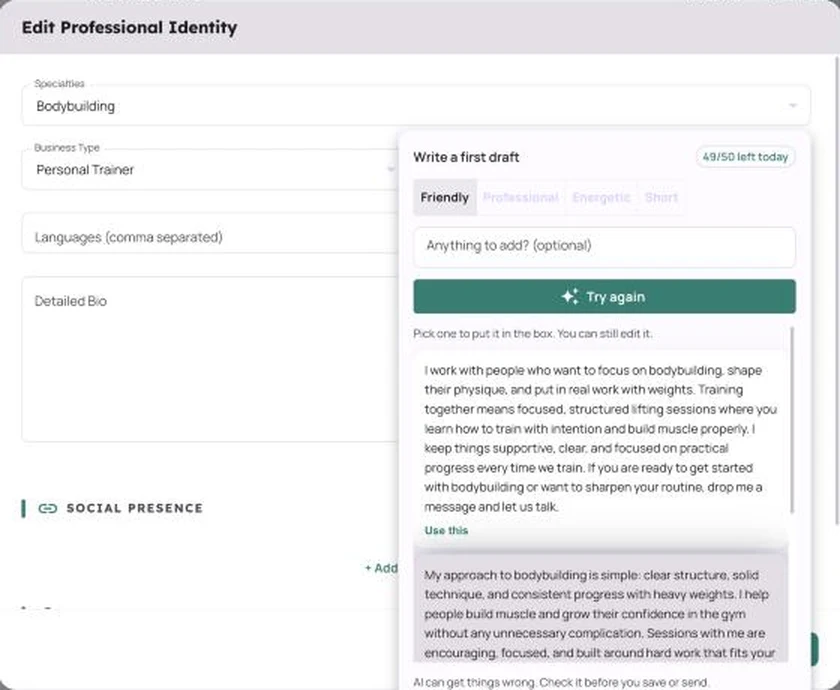
A Write with AI button under your bio, gym description, plan and template descriptions, invoice footer, intake questions and client messages gives you three drafts to pick from or edit. It only uses what is on your public profile, never contact or payment details, and nothing is saved until you choose one. Free for everyone with a daily limit, higher on Coach Pro.
Three practice clients in every new account
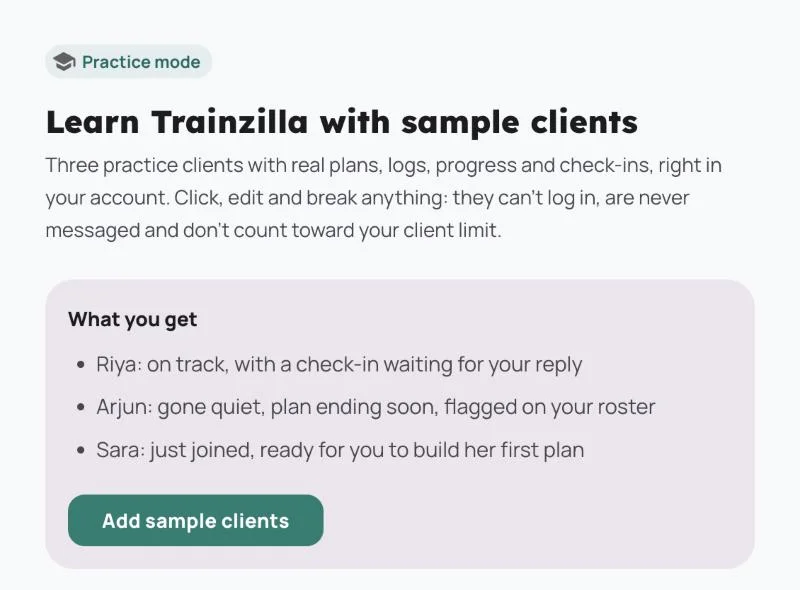
New coaches now start with three sample clients: one on track with a check-in waiting, one who has gone quiet with a plan about to end, and one who just joined and needs a plan. Open the Sample client page for a short task list on each, learn the dashboard on realistic data, then remove them with one button. They never count toward your client limit or appear in your numbers, and they never email anyone.
Scheduled check-ins arrive when they are due
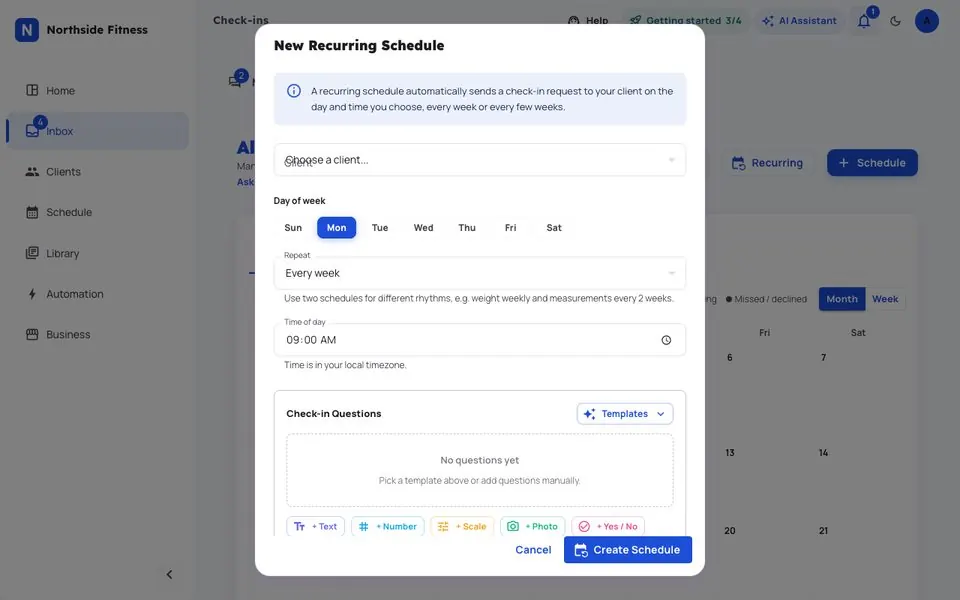
A recurring check-in no longer pings the client the moment you create it. They get the invitation when it is actually due, and editing or deleting the schedule clears the upcoming ones that were never answered. Check-ins added to a program keep the name you give them.
Help text and progress-chart tags on check-in questions
Add a short help line to any check-in question. Tag a number question as weight, waist, hip, chest, arm, thigh or neck and the answer lands on the client's progress chart automatically, in the right unit. Specialties now include Fat Loss / Weight Loss and Women 40+ / Menopause, and the dashboard and earnings totals show your own currency even before your first payment.
Program builder: design a program once, start it for any client
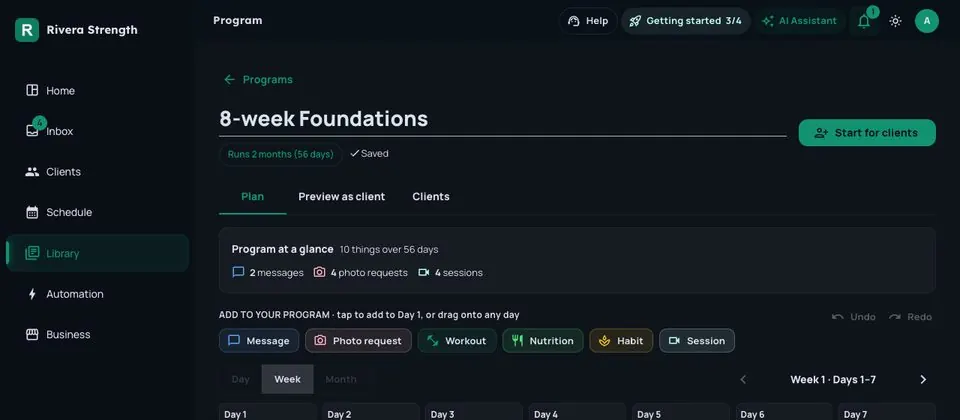
Library → Program builder lets you lay a program out on a day, week or month timeline: welcome messages, photo requests, workouts, nutrition plans, habits and sessions, each on the day you choose and repeating as often as you like. Preview it as your client sees it, then start it for clients or whole groups with a start date. Pause it, shift the start or edit one client's copy later. Starting programs needs Coach Pro.
Calendar view for workout and nutrition plans
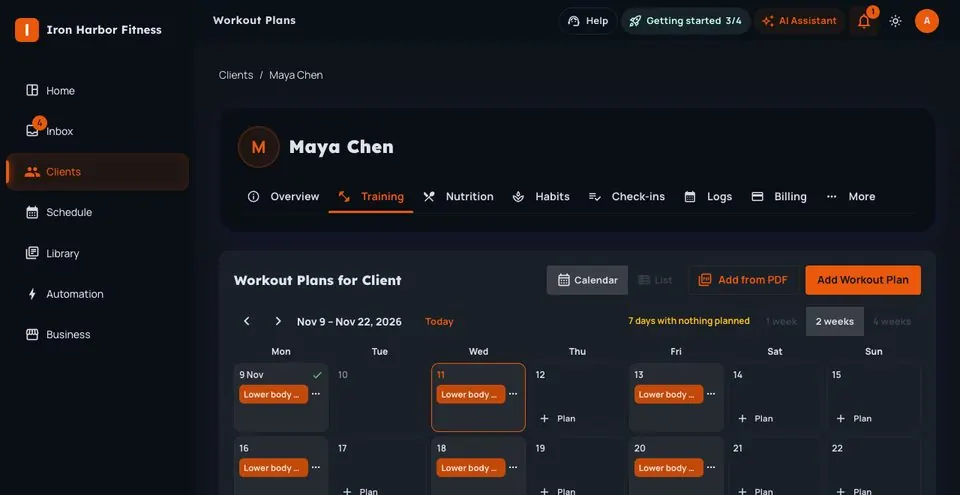
A client's Workout Plans and Nutrition Plans now open as a 1, 2 or 4 week calendar. See what is planned each day, what was logged and where the gaps are. Drag a workout to another day (hold Alt or Option to copy), copy it to a specific date, repeat it for more weeks, or add a plan for one day only or on repeat. Nutrition shows meals and calories per day. Program items show on the calendar too. On the web today; the coach apps follow.
Calendar views for sessions and check-ins
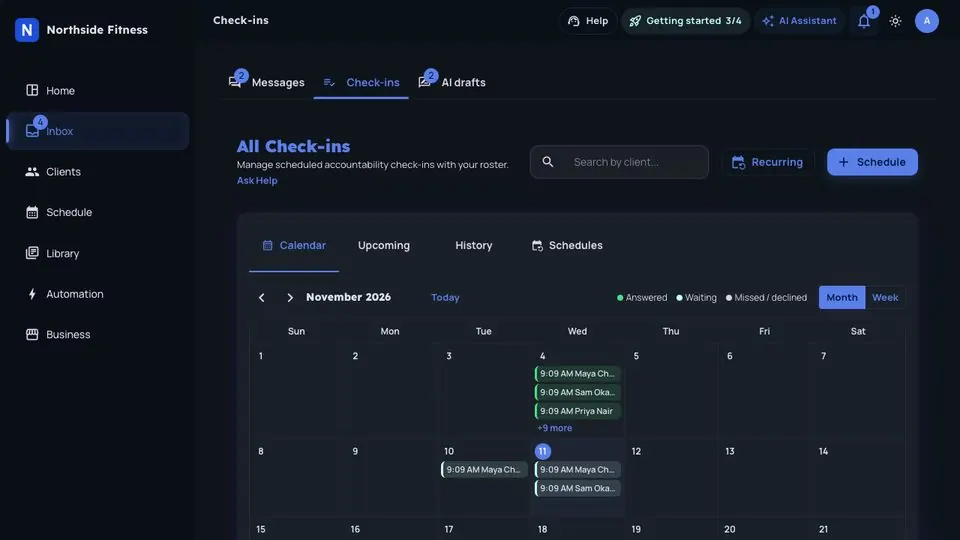
Sessions has a List and Calendar toggle, and clicking a session opens a panel to join, mark done, reschedule, cancel or message the client. Each client's Check-ins page has a Calendar tab where you click a day to see what they answered. The video minutes, Google Meet and Calendly cards are now compact tiles.
One Add a client button, and invite later
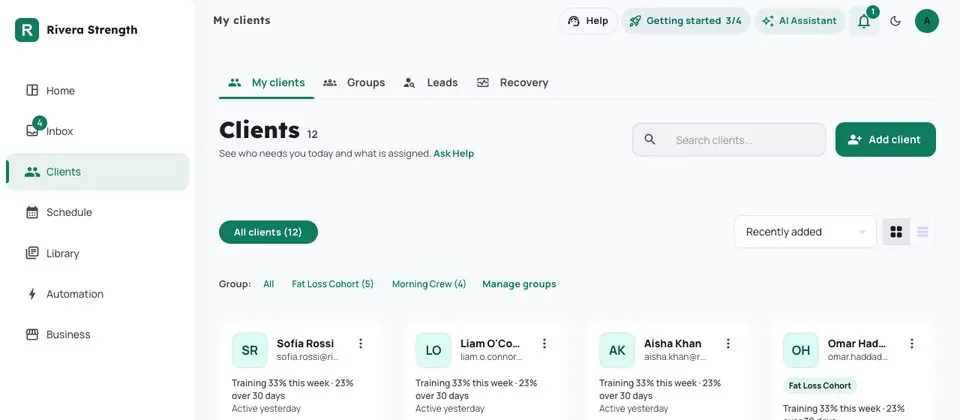
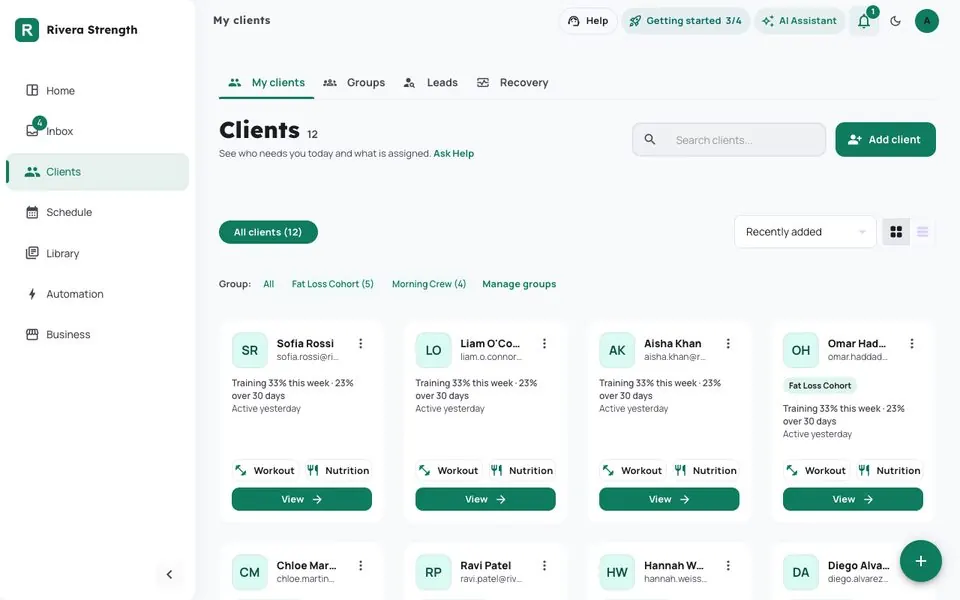
Adding a client is now one dialog: Offline (no app needed), a WhatsApp link, or an email invitation. A name is enough for an offline client, and you can invite them to the app whenever you are ready; their plans, notes and history move with them. The separate Invitations page is gone: clients who have not joined yet show under Waiting to join. Switching from another platform? Add clients offline first, then invite them.
Learn moreA simpler dashboard
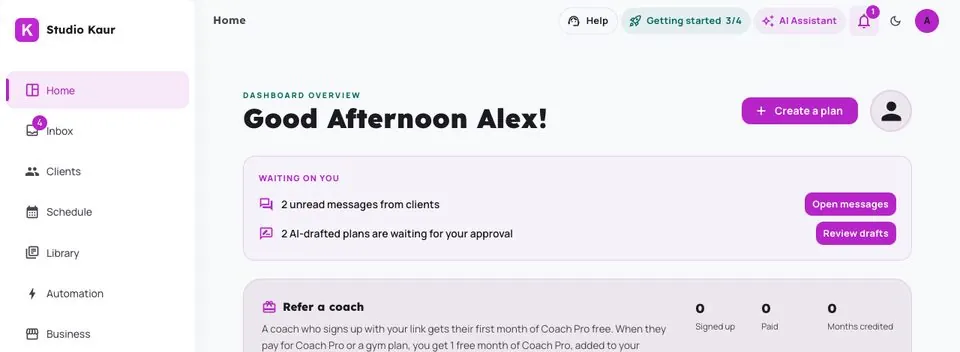
The menu is grouped by what you are doing: Inbox, Clients, Schedule, Library, Automation and Business. The clients list can be a table, with filters for who needs a plan, has gone quiet, is new this week or has a plan ending. A client's page is one row of tabs, and new coaches get a short getting-started checklist and a sample client to explore.
Exercise library, your own exercises and saved sections
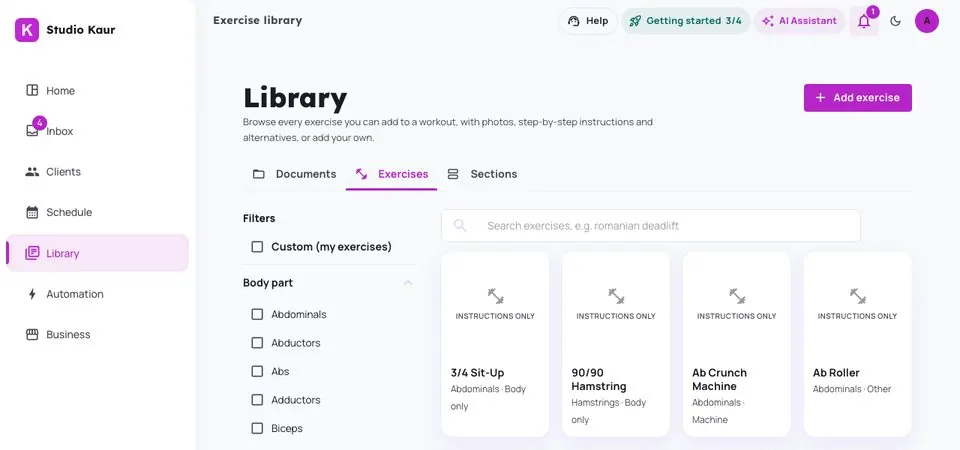
Browse the exercise catalog with filters for body part, equipment and discipline, and open any exercise for instructions and alternatives. Add your own exercises, save a block like your warm-up as a reusable section, and build workouts with the catalog beside the plan on wide screens.
Get paid in one place
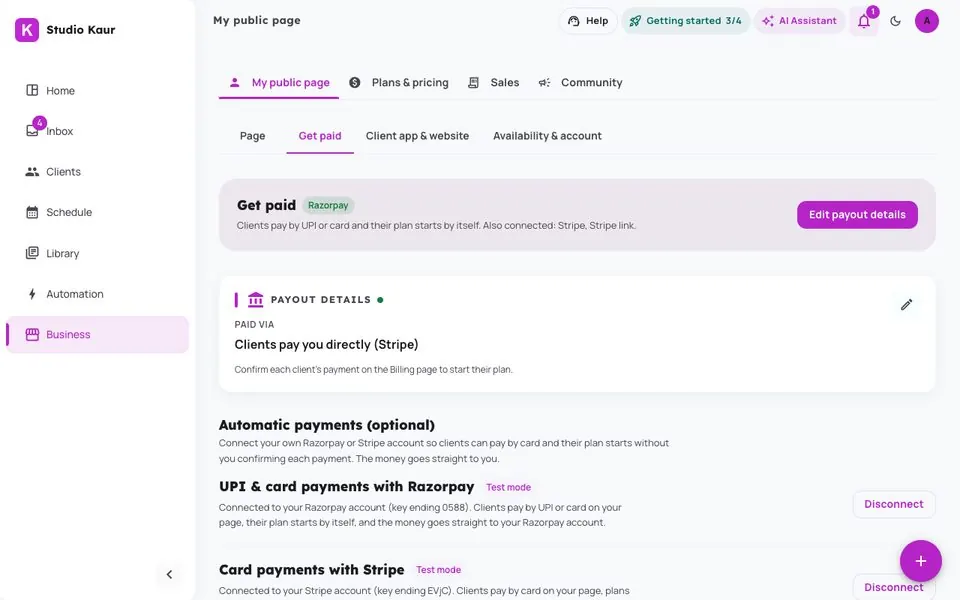
Your payout details, plans and card connections now live together under the Get paid tab on My public page, with the active method shown and a Change button.
Switch to Trainzilla by chatting with AI
Tell Claude, or the AI Assistant in your dashboard, that you are moving from another platform and hand over what you have: an export, a pasted client list, a screenshot, plan PDFs or a typed list. AI builds the client table, shows a dry run, sends invites only after your yes, then helps with plans and back-dated history. Bulk invite needs Coach Pro.
Learn moreTwo-factor sign-in for coaches
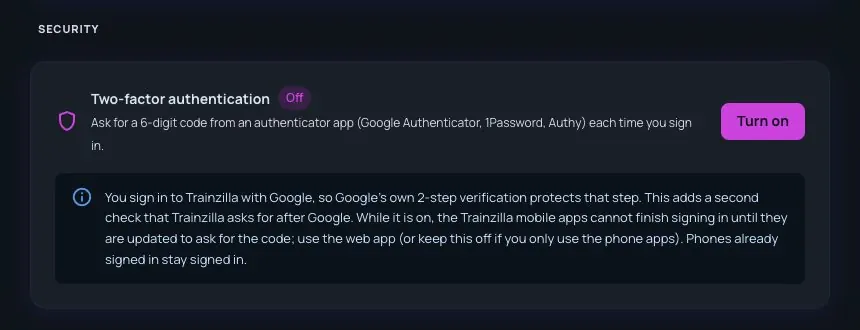
Turn on an authenticator-app code from the Two-factor authentication card on your Account details page. After you sign in with Google or Apple you are asked for the 6-digit code, and you get recovery codes in case you lose your phone. It is optional. Set it up on the web; the Trainzilla Coach mobile apps ask for the code after their next update, so keep signing in on the web until then.
Set calorie and macro targets for a client, with or without a plan
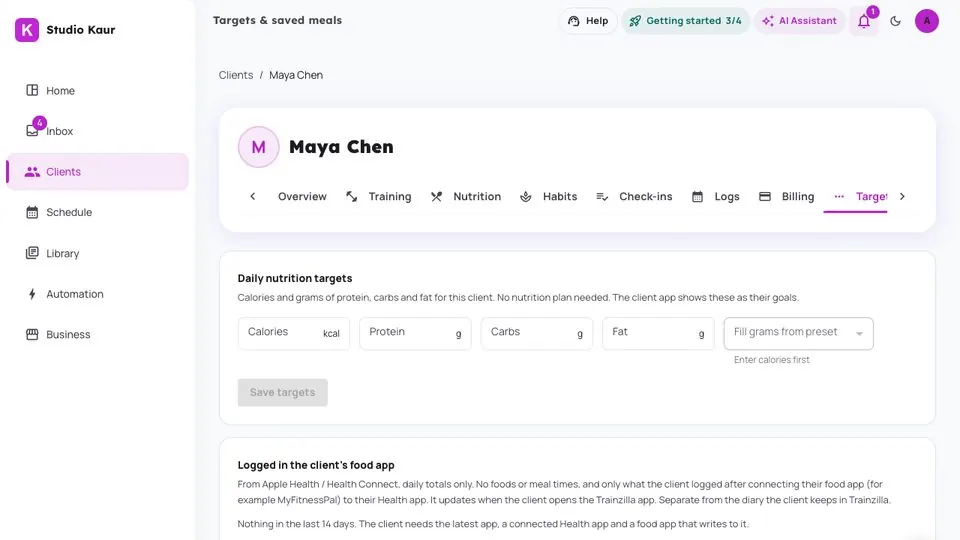
Open a client's Targets & Meals tab and set daily calories, protein, carbs and fat, or start from a preset, without building a nutrition plan first. You can also manage that client's saved meals there. The client app shows the gram goals from its next update.
Rep ranges, private client notes and plan dates that stay put
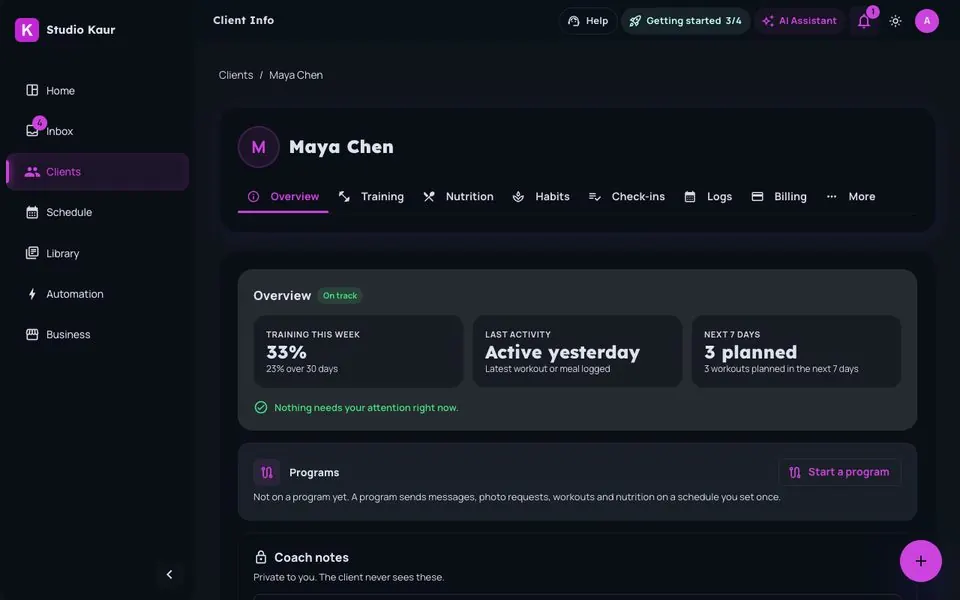
Write reps as a range such as 8-10 in the workout builders. Keep private notes on each client that only you can see, on their Client Info tab. Plan start and end dates now show the day you picked, whatever time zone you or your client is in.
Bring a client's past progress with you
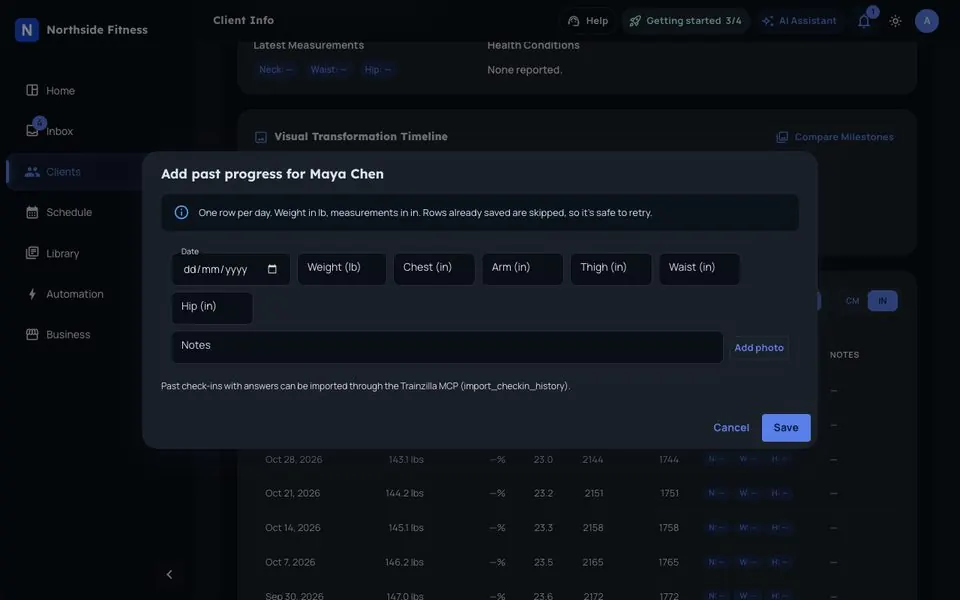
Add past weights, measurements and photos from the client page (Add past progress). Past check-ins with their answers, and progress for a client who has not finished setup yet, can be brought in through the Trainzilla connector for Claude. Everything is dated when it really happened.
Calendly bookings appear in Sessions
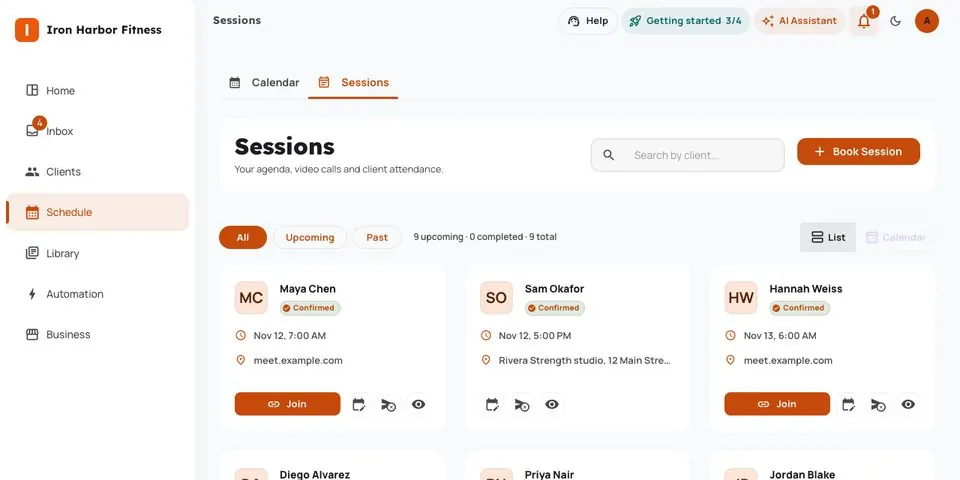
Connect Calendly from the Sessions page. When someone books through your Calendly link they are matched to your client by email and the session shows up in Trainzilla; cancellations follow. Bookings that do not match a client are listed for you to review and are never turned into clients automatically. Calendly sends these updates only on its paid plans.
Per-client reminder settings, and quiet hours with an away message for you
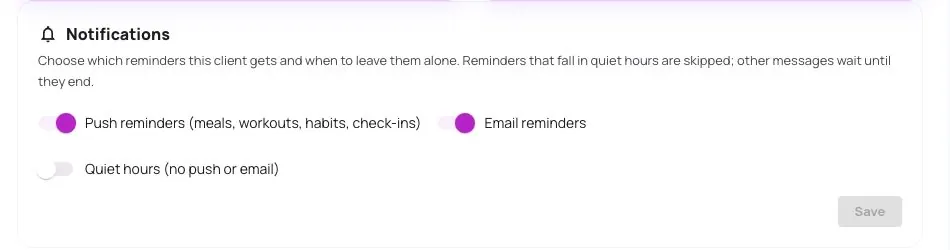
On a client's Client Info tab, choose which reminders they get and set their quiet hours. On your Profile page, set your own quiet hours and an away message that clients automatically get when they write to you then. Meal, workout and motivation reminders now go out in each client's own time zone.
Client groups: do for a whole group what you do for one client
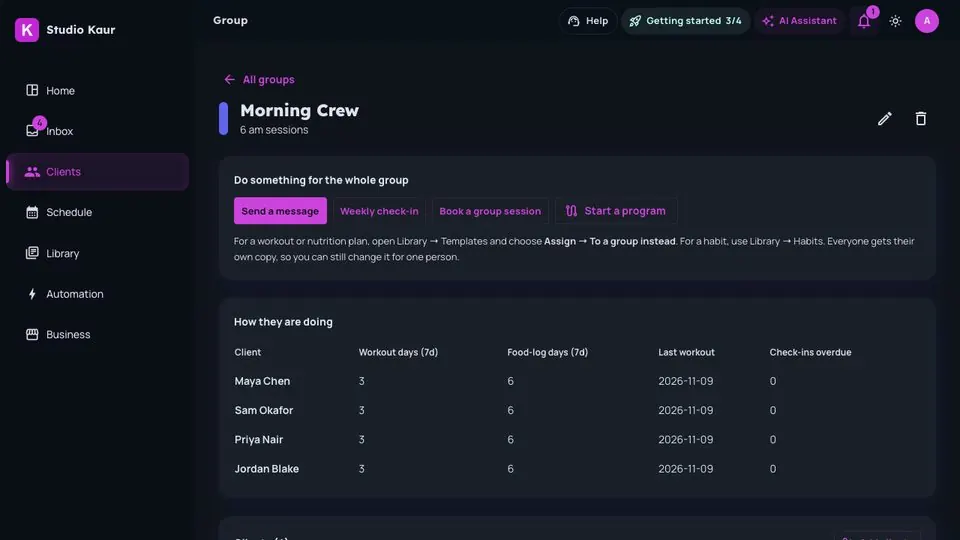
Put clients into groups, such as a morning batch or a 6-week cohort, then give a whole group a workout, nutrition plan or habit in a couple of clicks. Each client gets their own copy, so you can still change it for one person. You see who will get it before anything happens, can leave people out, and can undo it. Coach Pro and gym plans, on the web.
Message, check in with and book a group
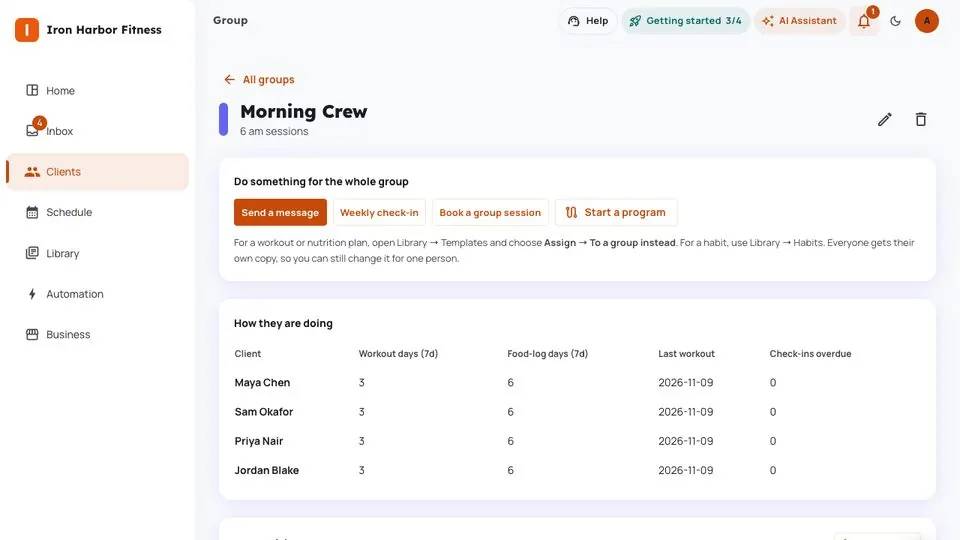
From a group, send the same message to everyone in their own chat with you, give them a weekly check-in, or book one group session at a time that works for you. Each client gets their own session with the same meeting link, and cancelling it tells them.
See who is quiet this week, and invite straight into a group
A group's page shows each client's workout days and food-log days this week, their last workout and any check-ins they haven't answered. When you invite someone, you can choose a group and they join it as soon as they accept.
Discount codes for your plans
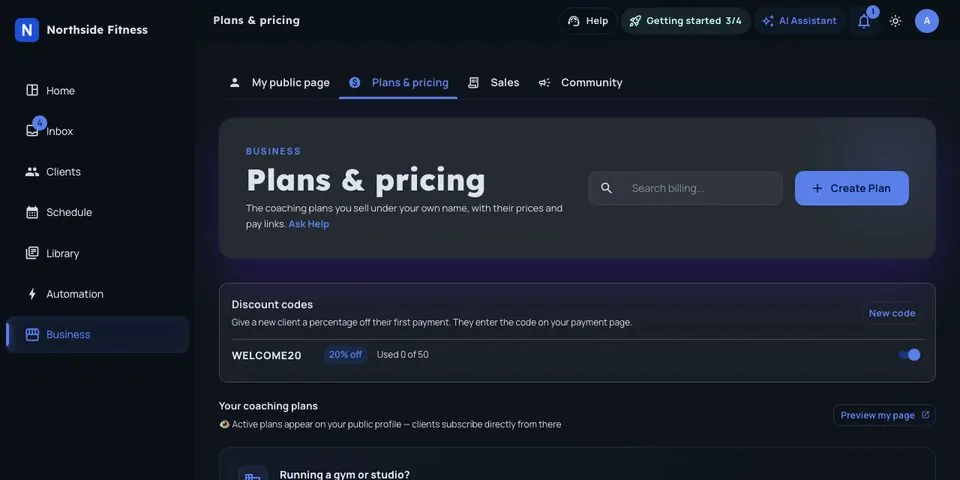
Create a percentage-off code under Billing > Plans (with an optional use limit and expiry). Clients enter it on your payment page and the first payment is discounted, whether they pay by card on your Stripe, by UPI or card on your Razorpay, or tell you they have paid. Subscriptions renew at the full price.
Webhooks for Zapier, Make or your own server
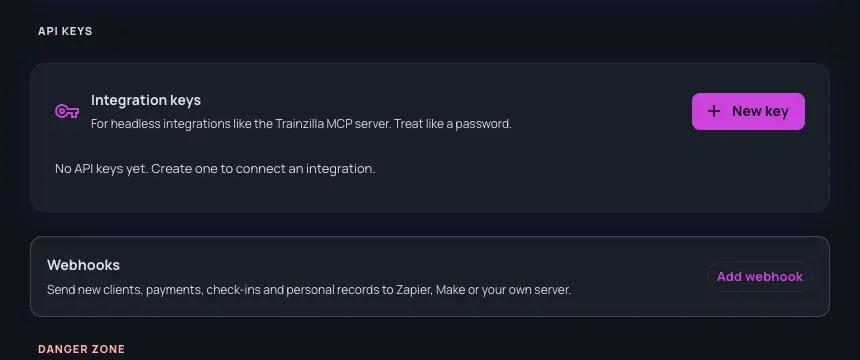
Add a webhook URL under Account > Webhooks to get a signed notification when a client joins, a payment is confirmed, a check-in is submitted or a client hits a personal record. Failed deliveries are retried, and you can send a test event from the same screen.
Challenges for your clients
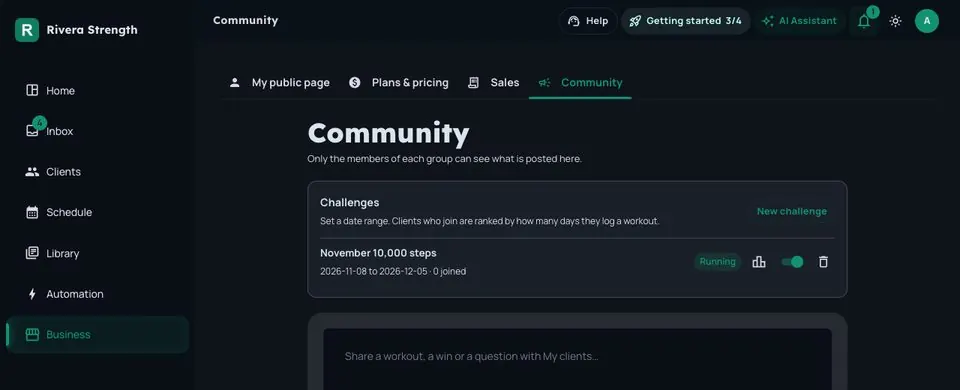
Open a challenge on the Community page with a start and end date. Clients who join are ranked by the days they log a workout, shown by first name and last initial. The app updates for clients follow in the next release.
Superset labels and new check-in questions
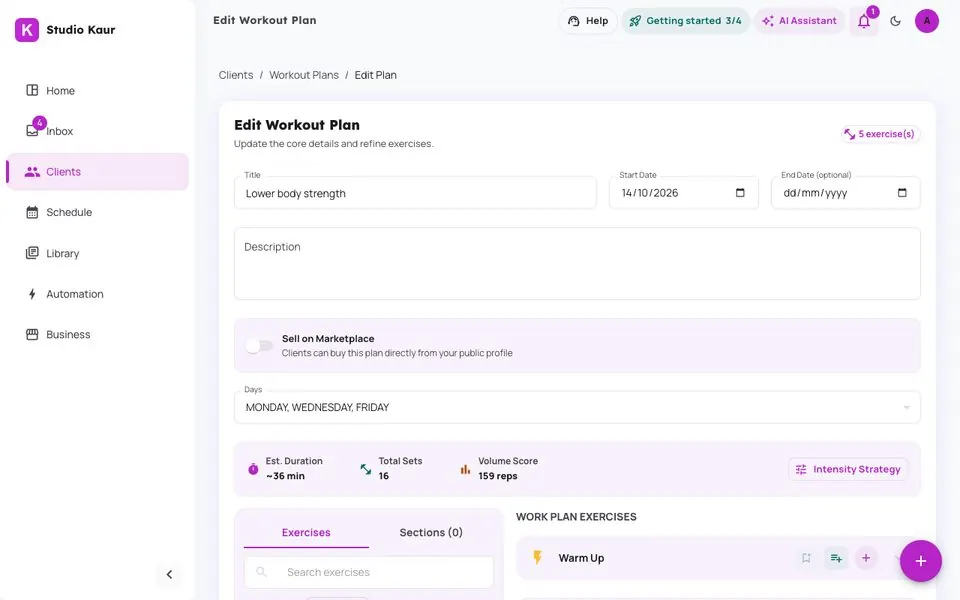
Tag exercises as a superset (A, B and so on) in the plan builders, and add Yes/No and multiple-choice questions to your check-ins.
Payments you collect directly now appear in Payments and revenue
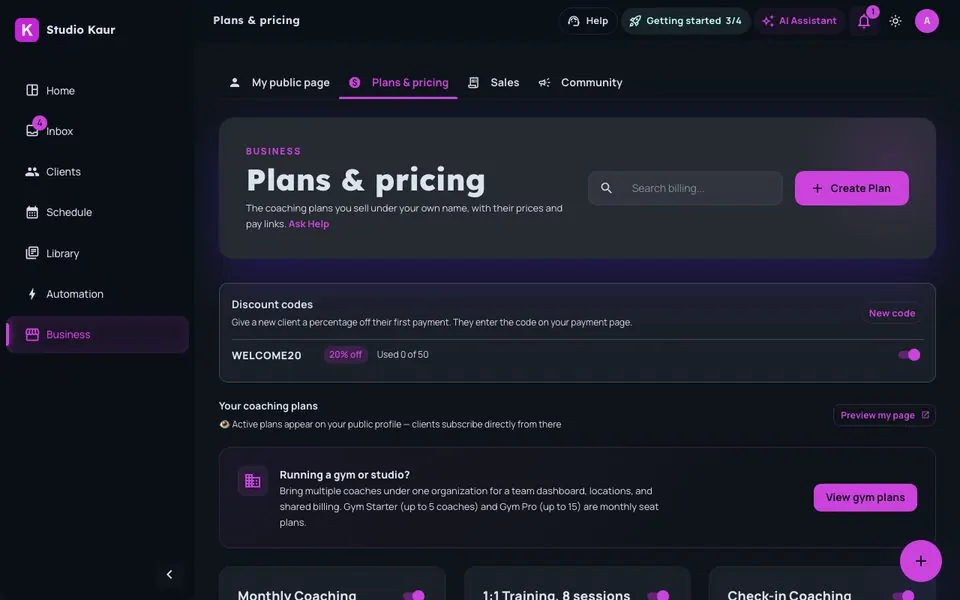
Payments you confirm yourself, and card payments through your own Stripe or Razorpay, now show in your Payments list and in the revenue on your dashboard.
Document library: share guides and files with clients
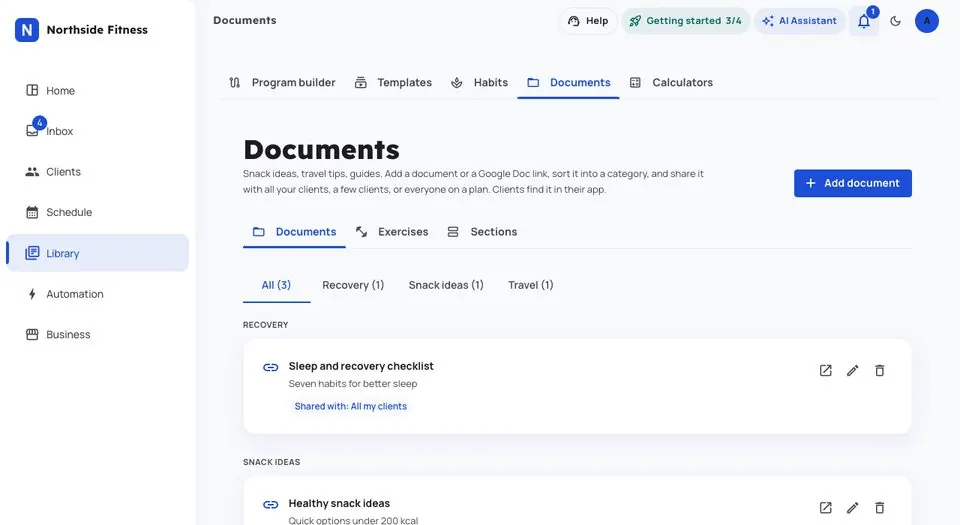
Upload PDFs, guides and notes once in the new Library, then share them with all your clients or only the ones you choose. Clients find them under Library in the client app.
Weekly message series
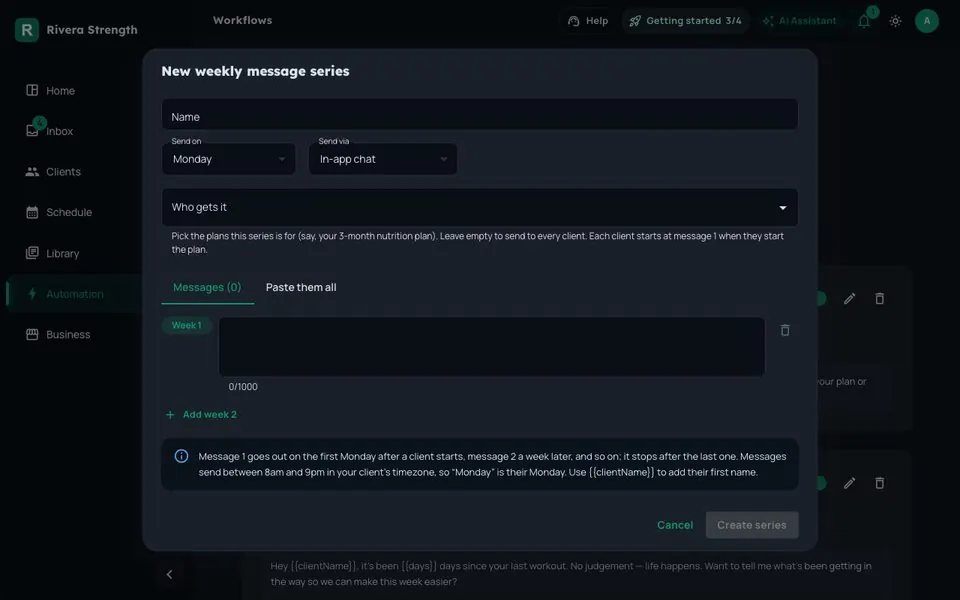
Write a week-by-week series of messages in Workflows, pasting them all in at once. Each client gets the message for their own week, so a 12-week programme runs without you sending each one by hand.
Learn moreCheck-ins every 2 weeks, in your time zone
Schedule a check-in to repeat every 2 weeks, with a Bi-weekly measurements preset that now includes chest, arm and thigh. New schedules go out in your own time zone.